
 Gift Cards — store value customers can buy and gift
A Gift Card lets one customer buy a set amount of store value and give it to someone else (or keep it). After the order is paid the store issues a unique code (by e-mail and as a printable PDF with a QR); the recipient redeems that code and the value lands in their Virtual Wallet, ready to spend — in full or across several orders. In short: buy value → get a code → the recipient redeems it and shops.
You will find it in the admin panel under Apps → Gift Card (a paid app). It has Settings, an Issued cards list and a PDF template editor.
How it works
- Purchase — the customer opens the gift-card page, picks an amount (and optionally enters recipient e-mail / name / a message) and checks out like any other order. An account is required, because the value needs a wallet to live in.
- Code — once the order is paid, a unique code is issued and delivered by e-mail / as a PDF (with a QR for scan-to-redeem).
- Redeem — the recipient enters the code (on the gift-card page, from their account, or by scanning the PDF QR).
- Spend — the value is credited to their Virtual Wallet and used at checkout, in full or in part, across one or more orders.
Gift card and Wallet work together
The gift card is how you load value; the Wallet is where that value lives and is spent. Redeeming a code adds the amount to the recipient’s wallet as a gift that never expires. That is also why a customer can have a wallet balance without ever buying anything themselves — someone gifted them a card. (See the separate Virtual Wallet article for how the balance is spent and refunded.)
Setting it up
Open Apps → Gift Card → Settings:
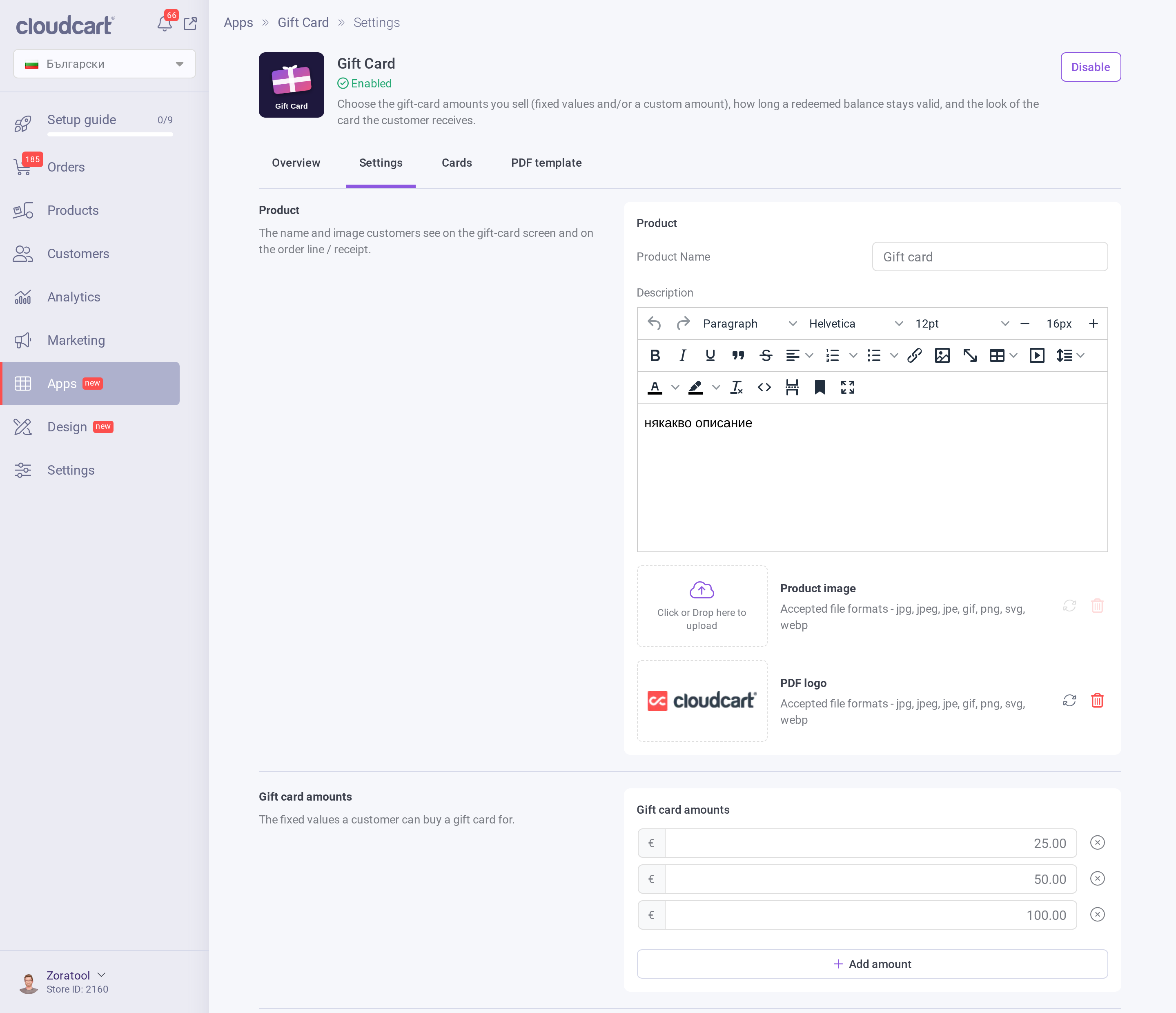
- Product name, description & image — the name, description and artwork customers see for the gift-card product and on the order line / receipt.
- PDF logo — the logo printed on the gift-card PDF the recipient receives.
- Amounts — the fixed denominations a customer can buy (e.g. 10 / 25 / 50 / 100). Add or remove rows as you like.
- Allow custom amount — let customers enter their own value (off by default). When on, you can set a minimum and maximum (leave empty for no limit).
- Gift cards expire — off by default (codes never expire). When on, you set how long (Valid for + unit: days / months / years). This is the window the recipient has to redeem the code — once redeemed, the wallet credit itself does not expire.
- Show redemption form on the gift-card page — adds a “redeem a code” form on the storefront gift-card page (visible to logged-in customers; guests are asked to sign in first).
Click Save to apply your changes. The separate PDF template tab lets you customise the printable gift-card PDF (amount, code, QR, recipient, message, etc.).
How customers buy and redeem
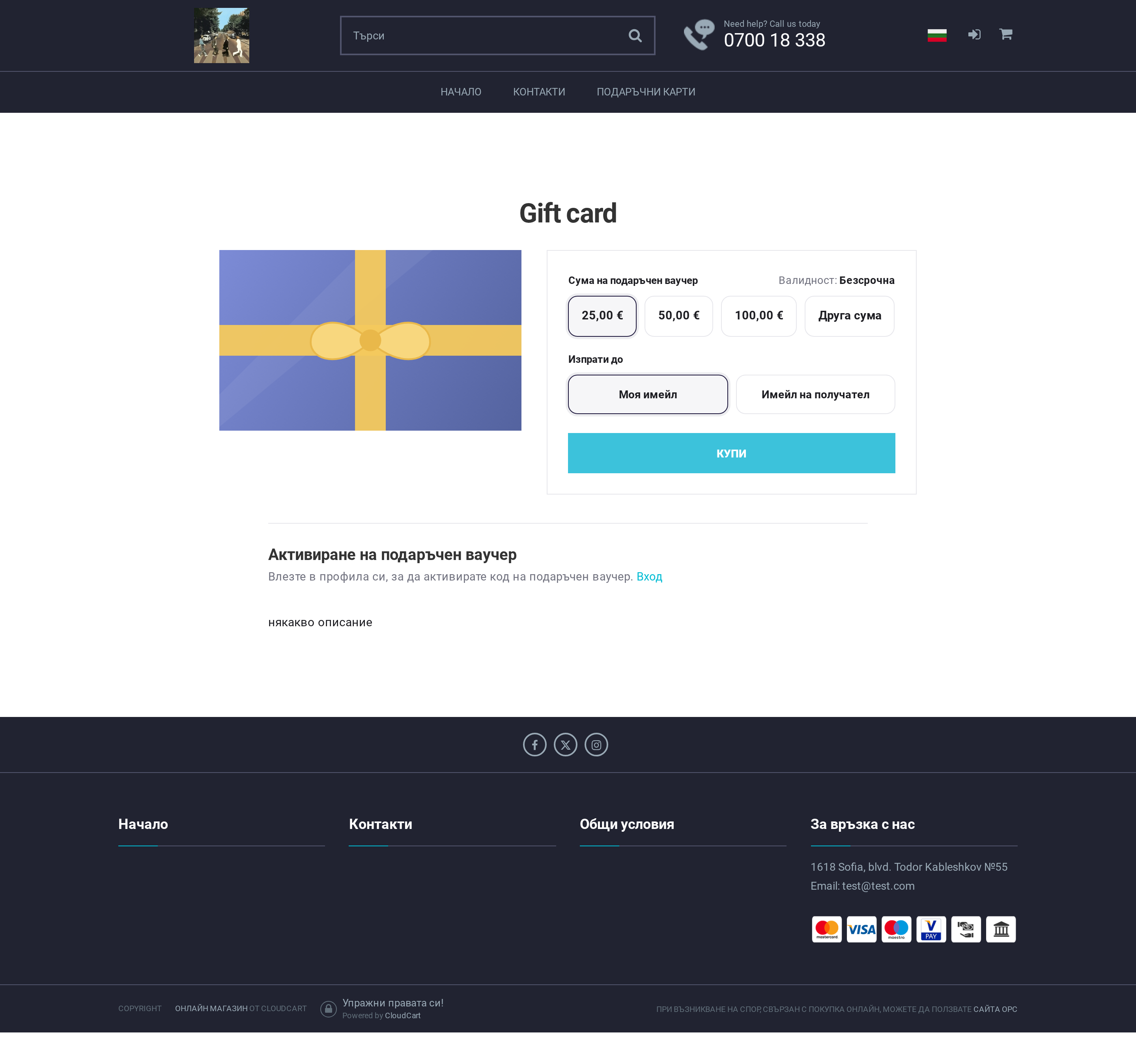
On the storefront the customer opens the gift-card page, chooses an amount (or a custom value, if enabled), optionally fills in who it is for, and completes checkout. After payment the code is issued and sent out. The recipient redeems it — via the form on the gift-card page, from My Account, or by scanning the QR on the PDF — and the value is added to their Virtual Wallet, usable at checkout straight away.
VAT — how it works
The Gift Card is a multi-purpose voucher (MPV): it can be spent on anything in your store, across different VAT rates, so at the moment the card is bought it is not yet known what will be purchased.
| Moment | VAT | Documents |
|---|---|---|
| Buying the gift card | No VAT is charged | No invoice and no fiscal receipt for goods — buying a card only loads a means of payment, it is not a sale of specific goods or a service. |
| Spending (buying with the card’s value) | VAT is charged on the purchased goods, at their own rates — exactly as with any other payment | A normal invoice / receipt for the order; the value appears as a “Paid with wallet” payment line. |
In short: VAT is not due when the gift card is bought, but when the purchase is made. Because both the card and the wallet are multi-purpose, the value is taxed only once — on the final purchase — with no double VAT along the gift card → wallet → order chain. This is exactly why the gift card is set up as a multi-purpose (not single-purpose) voucher.
Monitoring: issued cards
The Cards tab lists every gift card that has been issued — its code, amount, status (Active / Redeemed / Disabled / Expired), who bought it, the recipient, the order it came from and the issue date.
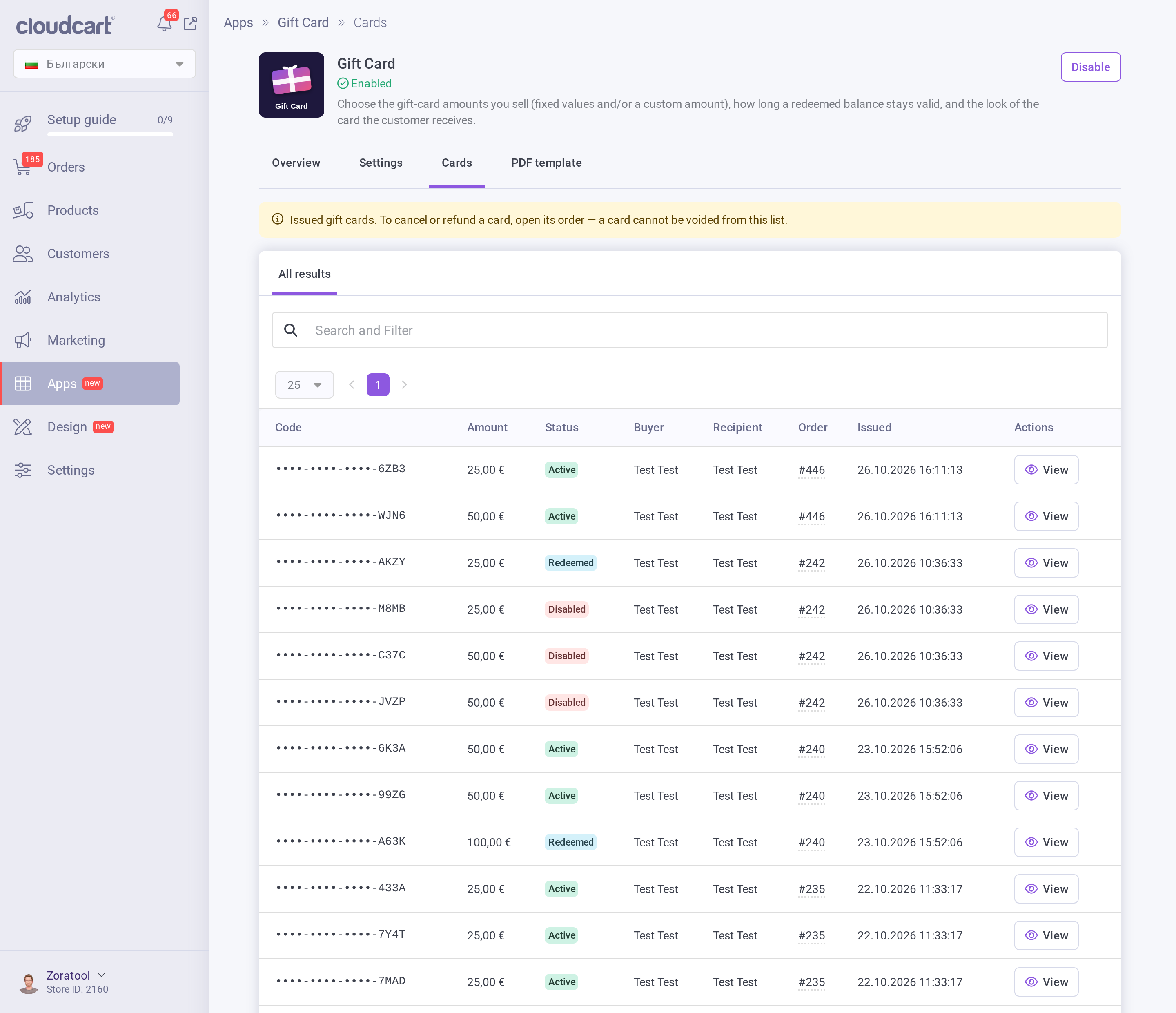
A card cannot be voided from this list — to cancel or refund one, act on its order.
Refunds
Because redeemed value lives in the customer’s Virtual Wallet, refunds of orders paid with it follow the wallet rules — the amount goes back to the wallet balance.
Note: this article describes how the feature behaves. For specific accounting questions (ledgers, fiscal-reporting details) please consult your accountant.